Right now I am playing two games: Tiny Wings from Andreas Illiger (available at: this iTunes link) and Amazing Blue Fugu from Titanbase Productions (available at: this iTunes link).
Looking forward to Game Center support!
Friday, February 25, 2011


Sunday, January 30, 2011
Best iPhone and iPad Apps and Games for 2011
In 2011, we expect a lot from our mobile apps! Here are the best apps so far.
The games and apps I list here work on both the iPhone and iPod Touch, as well as the iPad. Sometimes the app works differently on the iPad, since you have more room on the top and bottom of the screen.
For reading mail: The best is still the built-in Mail app. I haven't found anything better, and I like that it works with my Yahoo! e-mail account. Price: FREE Pre-installed.
For viewing PDFs: MyPDFs Mobile is great! It's free and I can quickly store PDFs. It's perfect for reading e-books or if I want to show my 'virtual' business card (which is a PDF with 60 point fonts, printed in landscape). I have tried most of them, and I really didn't need the power of Goodreader (#2), but your requirements for features will vary. Price: FREE MyPDFs Mobile PDF Viewer on iTunes
For checking the weather: I like The Weather Channel's app presentation better than the built-in Yahoo! Weather app. Also it's handy to click Local Weather Video and get a quick automated voice summary of the weather report. Then I can do other things, like finish breakfast. Price: FREE TWC App on iTunes Also check out The Weather Channel Max for more features. Price: $3.99
For puzzle, board and card games: Most people seem to like the puzzle game Angry Birds, but I prefer the card game Card Shark Solitaire, with Bejeweled at #2, since it reminds me of an elaborate slot machine. Puzzles require skill, but I always come back to Klondike Solitaire. Card Shark can also be upgraded if you like other card games. Price: FREE Card Shark Solitaire on iTunes Also check out Card Shark Collection Deluxe for more variety and features. Price: $1.99
For action, arcade and fighting games: The most addictive game I have found is the Amazing Blue Fugu from Titanbase Productions. The concept of the game and weaving through the mine fields is great. The controls are intuitive, and it doesn't ask you to click fake buttons or balance the phone at odd angles. It's a new release, so I can't wait to see new baddies. Price: $0.99 Amazing Blue Fugu on iTunes
For doing something besides listening to my MP3s: Maybe you want to unwind, but you're not sure what you want to listen to. Or you could be at work and there is a lot of hustle and bustle. The deadline is approaching and you need to concentrate. Try White Noise Lite. Helps mask background noise so you can focus, without the 3 o'clock cup of coffee. Price: FREE White Noise Lite on iTunes
Best popular website with a fun App interface: It's a tie! There are two that are better than anything else. There are good ones, but these are apps I use all the time. IMDB Movies & TV and Wikipanion. Both rely on the web for content, but provide it in a quick-search App format. Not only do I save a click on Safari, then Bookmarks, then finally the website, but the layouts seem polished. Price: FREE IMDB Movies & TV on iTunes Wikipanion on iTunes
Prices could change in the future, but these are great deals for now. Total cost of the top apps list is 99 cents, and only a couple bucks more if you want all the features. That's amazing, but it is 2011, so who knows what we'll see as the year unfolds? I will look back at this list at the end of the year and compare my "Top Apps".
These reviews are my own opinion, based on my experience, but I'd like to hear about the apps you can't live without. Share yours in the Comments section. What are your "must have" apps and games for 2011?
The games and apps I list here work on both the iPhone and iPod Touch, as well as the iPad. Sometimes the app works differently on the iPad, since you have more room on the top and bottom of the screen.
For reading mail: The best is still the built-in Mail app. I haven't found anything better, and I like that it works with my Yahoo! e-mail account. Price: FREE Pre-installed.
For viewing PDFs: MyPDFs Mobile is great! It's free and I can quickly store PDFs. It's perfect for reading e-books or if I want to show my 'virtual' business card (which is a PDF with 60 point fonts, printed in landscape). I have tried most of them, and I really didn't need the power of Goodreader (#2), but your requirements for features will vary. Price: FREE MyPDFs Mobile PDF Viewer on iTunes
For checking the weather: I like The Weather Channel's app presentation better than the built-in Yahoo! Weather app. Also it's handy to click Local Weather Video and get a quick automated voice summary of the weather report. Then I can do other things, like finish breakfast. Price: FREE TWC App on iTunes Also check out The Weather Channel Max for more features. Price: $3.99
For puzzle, board and card games: Most people seem to like the puzzle game Angry Birds, but I prefer the card game Card Shark Solitaire, with Bejeweled at #2, since it reminds me of an elaborate slot machine. Puzzles require skill, but I always come back to Klondike Solitaire. Card Shark can also be upgraded if you like other card games. Price: FREE Card Shark Solitaire on iTunes Also check out Card Shark Collection Deluxe for more variety and features. Price: $1.99
For action, arcade and fighting games: The most addictive game I have found is the Amazing Blue Fugu from Titanbase Productions. The concept of the game and weaving through the mine fields is great. The controls are intuitive, and it doesn't ask you to click fake buttons or balance the phone at odd angles. It's a new release, so I can't wait to see new baddies. Price: $0.99 Amazing Blue Fugu on iTunes
For doing something besides listening to my MP3s: Maybe you want to unwind, but you're not sure what you want to listen to. Or you could be at work and there is a lot of hustle and bustle. The deadline is approaching and you need to concentrate. Try White Noise Lite. Helps mask background noise so you can focus, without the 3 o'clock cup of coffee. Price: FREE White Noise Lite on iTunes
Best popular website with a fun App interface: It's a tie! There are two that are better than anything else. There are good ones, but these are apps I use all the time. IMDB Movies & TV and Wikipanion. Both rely on the web for content, but provide it in a quick-search App format. Not only do I save a click on Safari, then Bookmarks, then finally the website, but the layouts seem polished. Price: FREE IMDB Movies & TV on iTunes Wikipanion on iTunes
Prices could change in the future, but these are great deals for now. Total cost of the top apps list is 99 cents, and only a couple bucks more if you want all the features. That's amazing, but it is 2011, so who knows what we'll see as the year unfolds? I will look back at this list at the end of the year and compare my "Top Apps".
These reviews are my own opinion, based on my experience, but I'd like to hear about the apps you can't live without. Share yours in the Comments section. What are your "must have" apps and games for 2011?
Sunday, October 10, 2010
Exclusion layer filter in Paint Shop Pro
What makes up the Exclusion layer filter in Paint Shop Pro? It works a bit differently than the Difference layer filter. The effects are shown below.


In the first screenshot, we see 3 color boxes in a layer called Layer1, set to 100% Normal. Below that, I have selected 3 more boxes to copy to another layer. If I change Normal to Exclusion, there is no change in the image. This means the Exclusion layer looks the same. It affects how you see the layers behind it, plus you see the remnants of the Exclusion layer. Since there is nothing behind it, it shows up Normally on both Normal and Exclusion. Let's see how it works in layers:

As you can see by my thumbnail overlay on Layer2, I added the boxes I selected from Layer1. Then I switched the layer mode to Exclusion. The darker colors are not excluding much... but the bottom brighter areas are shifting. Look at these ranges: red 100% to white. But there is a bit of cyan above the 50% mark. This is the effect of Exclusion.

Here I have removed the color box from Layer1 so that it is transparent. With nothing to exclude, the box returns to normal.

Instead of transparency in Layer1, what if it was a white box, as shown in the thumbnail? Here is the effect of exclusion over a white box. Not only are the colors reversed, but black and white are flipped! This is shown by the fact that the small color select circles have not moved. This means black and white are both affected, which means this article at about.com is incorrect, as shown by this example. Black is affected, if you exclude white with black (which the about.com author did not test).

With a black background: here is where the confusion lies. Notice that we flipped black and white above, but here against black we see no effect. The effect here is "exclude black with black", which leaves us with black. It's a different pixel color calculation than the one above.

As a final test, I have taken a copy of the top box, flipped it, then mirror-imaged it. What we see now is the bottom box flipped and mirrored, with a normal-looking 3 color box in Exclusion mode above that. Black color is completely excluded out, another example that all colors are affected with one minor detail: once you hit 0,0,0, you can't go below that. Also, once you hit 255,255,255, you can't go above that.
Hopefully these examples have illustrated how the Exclude filter works in Paint Shop Pro. Unlike Difference, which reverses color and brightness, Exclude works differently, and 'removes' the color from the layer below it. Also, white and black are absolutes with Exclude, whereas with Difference, they are simply 'flipped'.
Wednesday, June 16, 2010
New or Used PC Setup - First Steps to Optimize For Speed
Before you install software on a computer, check if you have the Restore CD/DVD. Run the restore process to return the PC to how it was configured from the factory. It is best not to deal with any software or licensing issues that come with a used PC, and it's nice to start with a fresh install. Once you are ready you can begin the process to determine what is on your computer, how it is configured, and what needs to be changed.
The first step is to check the Registry for 'Run' and 'Windows Load' commands to see what starts when the computer boots up. To run Registry Editor, click Start -> Run and enter REGEDIT. To find the Run and Load entries in your Registry Editor, search Google for your operating system's "registry locations". Since the word "run" is used frequently in the Registry, it's best to find the location and navigate directly there. (Quick tip on finding these entries: Click Edit -> Find in the Registry Editor and search for "RunOnce". Near the RunOnce entry you should fine the "Run" entry. Navigate one level back and you should find the "Load" entry.)
 Once you find a branch of Registry keys for 'Run', check each program that is listed. Search for the program names on Google if you aren't sure what they do. Disable anything you don't want here by saving the Registry entry for backup, then deleting that specific entry. Or you can leave the Registry name behind for reference, and clear out the key entry path and executable from the right column. The Registry won't run any blank entries.
At this point the Registry entries tell you what software is installed on your PC, which will be helpful later. You also know what device drivers are required by your computer. To verify that you have checked all start up locations, click Start -> Run and enter MSCONFIG. Click OK to start the program and check the Startup tab to confirm your start up programs are correct. This can also be used to temporarily uncheck/deselect start up programs for testing.
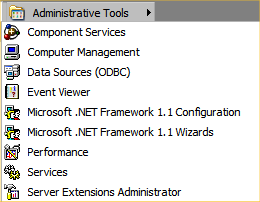
Now it's time to check the Administrative Tools or Admin Tools. If you can't find Administrative Tools on your operating system, search for it at Google by entering "Enable Administrative Tools Vista" or "Enable Administrative Tools Windows XP". It may be hidden by default on your operating system. For instance, on Windows XP, right-click your Start Menu, click Properties, click Customize, and check the Show Administrative Tools checkbox.
Once the Administrative Tools are enabled, they will show up in your Start menu in a new folder.
Start the Services program in Admin Tools. Check each Service in the list to determine if it should be disabled. If you are unsure, search for the name of the Service to see what it does. You can try a Service on Manual, then reboot, to see if the Service was activated by a startup process.
 Once you are done checking Services, check the Add/Remove Programs list in your Control Panel to see what you want to uninstall. I usually uninstall trial programs and programs that I don't want to keep. If you have disabled a Service and don't need it again, you may be able to uninstall the application from Add/Remove Programs. Check Google if you are unsure what a program does for your PC.
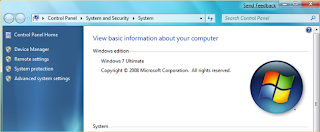
Now open your Device Manager and check for any problems. Problem devices will appear with a yellow triangle with an exclamation mark.
If you can't find your Device Manager, check the screenshots here for Windows XP and Windows 7 Device Manager locations.
Now restart your PC and check your Event Viewer under Administrative Tools for any errors on shutdown or startup. Some programs may cause errors if they are not closed before shutdown. Also you can find drivers that aren't working, or missing programs. Sometimes a program will be updated with a new file version to fix these errors.
At this point, run Windows Update and update your operating system. Then update any programs that are pre-installed, like antivirus applications or productivity suites, or any programs that do not seem to close properly or run smoothly.
 Next run DXDIAG from the Run command to check the status of your audio, video and system driver settings and make sure everything is working. DirectX Diagnostics can also check that your drivers are WHQL-compliant, which means they will work with DirectX applications.
Finally troubleshooting is done and you are ready to install your own software. I recommend that you run System Restore now and name the backup something memorable, like "Clean Install". If you have a Home Server, this is a good time to backup the entire system. Other backup options are: USB hard disks, CD-ROMs, DVDs and USB Flash drives.
If you want to manually back up your computer, follow these steps:

The first step is to check the Registry for 'Run' and 'Windows Load' commands to see what starts when the computer boots up. To run Registry Editor, click Start -> Run and enter REGEDIT. To find the Run and Load entries in your Registry Editor, search Google for your operating system's "registry locations". Since the word "run" is used frequently in the Registry, it's best to find the location and navigate directly there. (Quick tip on finding these entries: Click Edit -> Find in the Registry Editor and search for "RunOnce". Near the RunOnce entry you should fine the "Run" entry. Navigate one level back and you should find the "Load" entry.)

At this point the Registry entries tell you what software is installed on your PC, which will be helpful later. You also know what device drivers are required by your computer. To verify that you have checked all start up locations, click Start -> Run and enter MSCONFIG. Click OK to start the program and check the Startup tab to confirm your start up programs are correct. This can also be used to temporarily uncheck/deselect start up programs for testing.
Now it's time to check the Administrative Tools or Admin Tools. If you can't find Administrative Tools on your operating system, search for it at Google by entering "Enable Administrative Tools Vista" or "Enable Administrative Tools Windows XP". It may be hidden by default on your operating system. For instance, on Windows XP, right-click your Start Menu, click Properties, click Customize, and check the Show Administrative Tools checkbox.
Once the Administrative Tools are enabled, they will show up in your Start menu in a new folder.
Start the Services program in Admin Tools. Check each Service in the list to determine if it should be disabled. If you are unsure, search for the name of the Service to see what it does. You can try a Service on Manual, then reboot, to see if the Service was activated by a startup process.

Now open your Device Manager and check for any problems. Problem devices will appear with a yellow triangle with an exclamation mark.
If you can't find your Device Manager, check the screenshots here for Windows XP and Windows 7 Device Manager locations.
Now restart your PC and check your Event Viewer under Administrative Tools for any errors on shutdown or startup. Some programs may cause errors if they are not closed before shutdown. Also you can find drivers that aren't working, or missing programs. Sometimes a program will be updated with a new file version to fix these errors.
At this point, run Windows Update and update your operating system. Then update any programs that are pre-installed, like antivirus applications or productivity suites, or any programs that do not seem to close properly or run smoothly.
 Next run DXDIAG from the Run command to check the status of your audio, video and system driver settings and make sure everything is working. DirectX Diagnostics can also check that your drivers are WHQL-compliant, which means they will work with DirectX applications.
Finally troubleshooting is done and you are ready to install your own software. I recommend that you run System Restore now and name the backup something memorable, like "Clean Install". If you have a Home Server, this is a good time to backup the entire system. Other backup options are: USB hard disks, CD-ROMs, DVDs and USB Flash drives.
If you want to manually back up your computer, follow these steps:
- Export your entire Registry as 'CleanBackup_TodaysDate.Reg'
- Archive or 'Zip up' all of your "My Documents" files into one or two files (using WinZip).
- Zip up your Desktop files into a file called "Desktop_TodaysDate.zip"
- If you want all application settings, My Docs and Desktop items, zip up complete user folders in the Documents and Settings folder (this location name is different for Windows XP, Vista and Windows 7).
- Copy your backup files to a USB hard disk, CD-ROM or DVD for monthly backups.
Tuesday, April 13, 2010
Monitoring your PC and Useful PC Tools
Search Google for these good PC monitoring tools and utilities:
- For hardware monitoring, such as temperature, fan speeds and battery capacity, check out HWMonitor.
- PSTools and SysInternals for Windows Server maintenance. Also works good for workstations and home PC networks.
- If you need a quick virtual printer driver to archive monitoring results, search for PDFCreator on SourceForge. To change the default print size from A4 to Letter, change it in Document Properties 2 in PDFCreator first. Then open Properties in your Printers and Faxes Control Panel and change the default page size under the Printing Preferences button.
- If you need a quick virtual DVD-ROM or CD-ROM drive to show up in Windows Explorer, search for Daemon Tools.
- For hardware monitoring, such as temperature, fan speeds and battery capacity, check out HWMonitor.
- PSTools and SysInternals for Windows Server maintenance. Also works good for workstations and home PC networks.
- If you need a quick virtual printer driver to archive monitoring results, search for PDFCreator on SourceForge. To change the default print size from A4 to Letter, change it in Document Properties 2 in PDFCreator first. Then open Properties in your Printers and Faxes Control Panel and change the default page size under the Printing Preferences button.
- If you need a quick virtual DVD-ROM or CD-ROM drive to show up in Windows Explorer, search for Daemon Tools.
Subscribe to:
Posts (Atom)